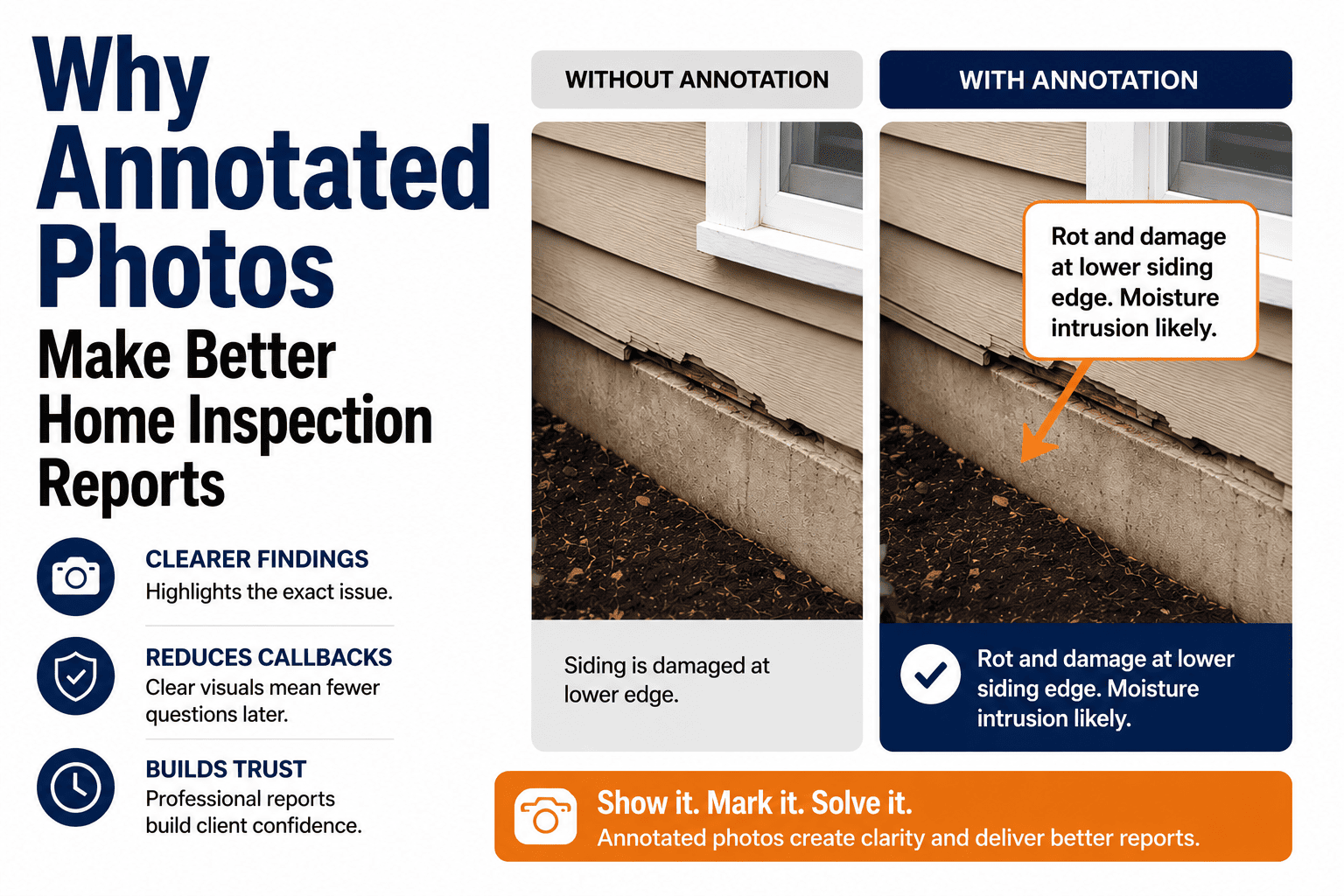

A picture may be worth a thousand words—but an unlabeled inspection photo often creates a thousand questions. Clients flip through your report, see a photo of a crack or stain, and immediately call asking "Where is this?" or "Is this serious?" This guide shows you exactly how to label inspection photos so every image communicates clearly, reduces callbacks, and makes your reports look professional.
Why Photo Labels Matter
Unlabeled photos are the #1 cause of post-report confusion. Here's what happens when you skip proper labeling versus when you do it right:
Without Labels
- "Where is this crack?"
- "Is this the front or back?"
- "What am I looking at?"
- "Is this serious or minor?"
- Multiple phone calls after delivery
- Confused real estate agents
- Unprofessional appearance
With Proper Labels
- Instant location recognition
- Clear issue identification
- Severity immediately understood
- Self-explanatory documentation
- Zero confusion callbacks
- Professional, polished reports
- Happy clients & agents
Auto-label photos as you capture them. HomeInspecto automatically tags photos with location, component, and condition data. Schedule a demo →
The 5-Element Photo Label System
Every inspection photo should include these five elements for maximum clarity. Not every photo needs all five, but knowing the framework ensures you never miss critical information:
Location
Where in the property is this?
Tip: Be specific. "Bathroom" is vague; "Hall Bathroom, 2nd Floor" is clear.
Component
What system or item is shown?
Tip: Use consistent terminology throughout your report.
Condition/Issue
What are you documenting?
Tip: Describe what you see, not what caused it.
Severity Indicator
How serious is this finding?
Tip: Use consistent severity categories across all reports.
Visual Markers
Arrows, circles, or highlights
Tip: Use red or bright colors that stand out clearly.
The Quick Label Formula
Photo Label Examples by Category
Use these real-world examples as templates for your own photo labels:
Exterior
"North Exterior Wall – Siding – Gap at Window Trim"
"Front Entry – Concrete Steps – Settling Crack (Monitor)"
"Crack in wall"
Roofing
"Roof – South Slope – Missing Shingles at Ridge (Repair)"
"Roof Flashing – Chimney Base – Lifted/Separated"
"Roof damage"
Plumbing
"Kitchen – Under Sink – Active Leak at P-Trap"
"Water Heater – TPR Valve – Discharge Pipe Missing (Safety)"
"Pipe leaking"
Electrical
"Main Panel – Double-Tapped Breaker (Repair Needed)"
"Master Bath – GFCI Outlet – Failed to Trip (Replace)"
"Wiring issue"
HVAC
"Attic – HVAC Condensate Line – Disconnected"
"Furnace – Heat Exchanger – Visible Rust (Have Evaluated)"
"HVAC problem"
Structure
"Basement – Foundation Wall – Horizontal Crack (Monitor)"
"Crawlspace – Floor Joist – Wood Rot at Rim (Repair)"
"Foundation crack"
Using Visual Markers Effectively
Arrows, circles, and highlights draw the eye directly to the issue. Here's when and how to use each type:
Arrows
Use for: Pointing to specific defects in busy images
Point FROM empty space TO the issue. Keep arrows short and direct.
Circles
Use for: Highlighting small defects or areas of concern
Make circles large enough to see but small enough to pinpoint the issue.
Boxes
Use for: Outlining larger areas or multiple related issues
Use when the defect spans an area rather than a single point.
Measurement Lines
Use for: Showing crack width, gap size, or dimensions
Include a reference object or ruler when exact measurements matter.
Color Best Practices
Photo Labeling Workflow
Follow this step-by-step process to label photos efficiently without slowing down your inspection:
Capture with Context
Take a wide shot first to show location, then close-up of the defect. This gives you labeling options later.
Voice Note the Location
While on-site, dictate "Master bath, shower, crack at corner" into your phone. It's faster than typing.
Add Visual Markers
Use your inspection app or photo editor to add arrows/circles highlighting the specific issue.
Apply Text Label
Add the Location + Component + Issue label. Keep it under 10 words for readability.
Assign Severity
Tag as Safety/Repair/Monitor/FYI so clients instantly understand priority level.
Skip the manual labeling entirely. HomeInspecto automatically labels photos based on which section you're inspecting. Start your free trial →
Common Photo Labeling Mistakes
Avoid these errors that make photos confusing rather than helpful:
Too Vague
"Crack" or "Damage" tells the client nothing. Always include location and component.
Too Technical
Clients don't know what "improper slope on TPR discharge" means. Use plain language.
No Visual Marker
A photo of a wall with a tiny crack is useless if you don't point to the crack.
Inconsistent Format
Mixing label styles ("Kitchen sink leak" vs "LEAK - Bathroom faucet") looks unprofessional.
Label Covers the Issue
Placing text directly over the defect defeats the purpose of the photo.
Missing Severity
Without priority indication, clients don't know what needs immediate attention.
Frequently Asked Questions
How long should photo labels be?
Keep labels under 10 words. The ideal format is Location – Component – Issue, which typically runs 5-8 words. If you need more detail, put it in the narrative text that accompanies the photo, not in the label itself. Labels should enable quick scanning; detailed explanations belong in the written report.
Should I label every single photo?
Yes, every photo should have at minimum a location identifier. Even "overall" or "context" photos benefit from labels like "Kitchen – Overview" or "Exterior – Front Elevation." The extra 10 seconds per photo saves minutes of confusion later. The only exception might be data plate photos where the plate itself provides the information.
What's the best app for adding labels to photos?
Purpose-built inspection apps like HomeInspecto automatically label photos based on your workflow section. For manual labeling, Skitch, Markup (iOS), or Snapseed work well. The key is finding a tool that lets you quickly add text and arrows without slowing down your inspection pace.
Should I use abbreviations in labels?
Use only universally understood abbreviations like HVAC, GFCI, or A/C. Avoid inspector jargon abbreviations that clients won't recognize. "WH" for water heater or "TPR" without explanation will confuse most homebuyers. When in doubt, spell it out.
How do I handle multiple issues in one photo?
Use numbered markers (1, 2, 3) with a corresponding legend, or take separate close-up photos of each issue. For example: "Electrical Panel – Multiple Issues: 1) Double-tap, 2) Missing knockout, 3) Corrosion" with arrows pointing to each numbered location. However, separate photos for separate issues is usually clearer.
Automatic Photo Labeling Built In
HomeInspecto labels photos automatically as you inspect—location, component, and condition tags applied instantly.
- Auto-labels by inspection section
- Built-in markup tools
- Severity color coding
- One-tap arrows & circles