
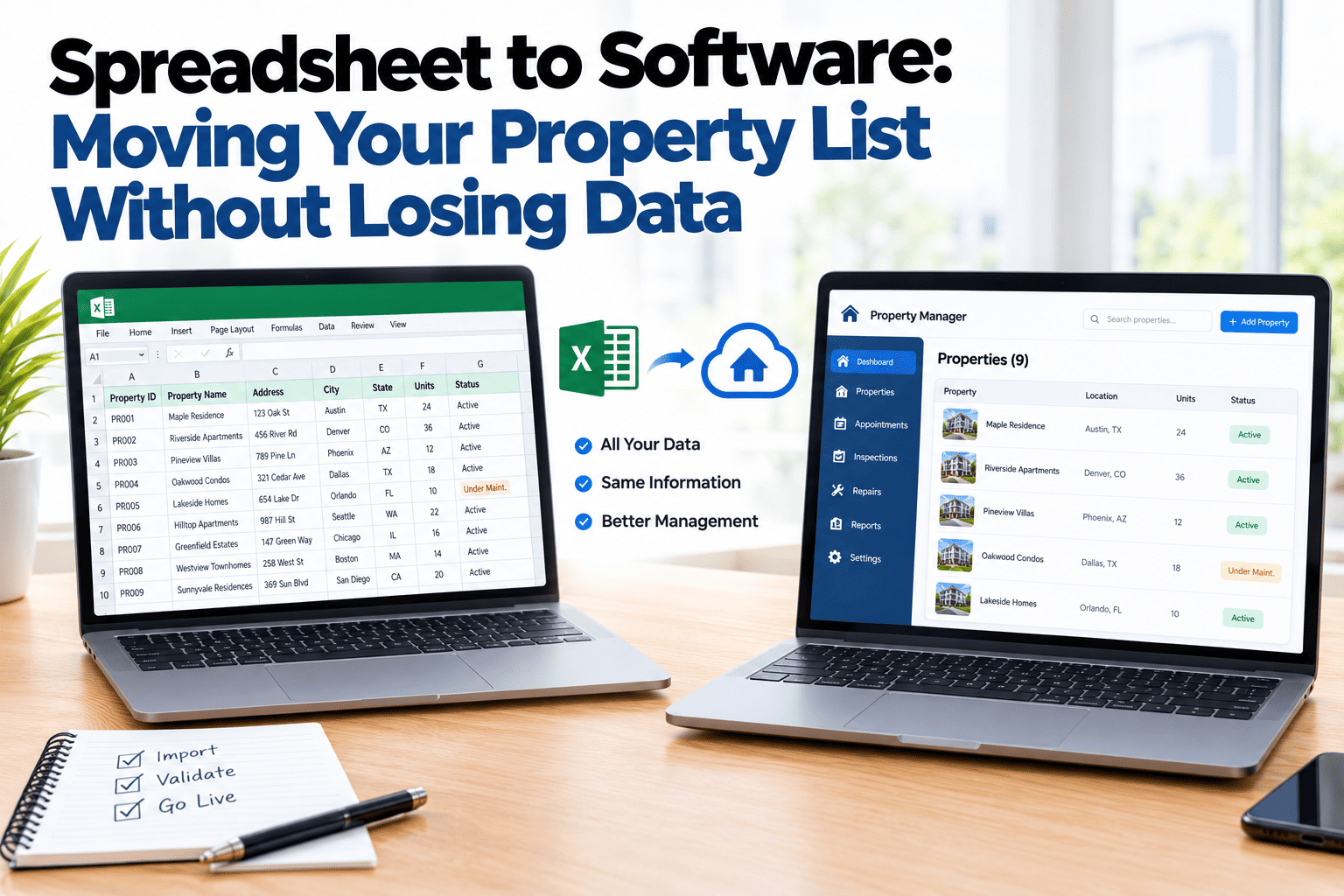
The spreadsheet got you here. It held the list, the dates and the notes when there were a handful of properties, and it did the job. But it does not remind you of anything, it cannot link a repair to an inspection, and by the time the list passes a dozen properties, nobody trusts the latest version. The thought of moving it all is what keeps people stuck. This guide covers how to move properties, history and open jobs from a spreadsheet into a real system, in an order that makes it manageable, and what to leave behind. If you want help planning the move, book a demo.
Spreadsheet to Software
Spreadsheet to Software: Move Your Property List Without Losing Data.
How to move properties, history and open jobs into a proper system, in manageable steps.
Export→Tidy→Import→Check
Map the Columns Before You Move Anything
Where each spreadsheet column goes
Address column
Property address
Owner column
Owner or client
Type and year columns
Property type, year built
Notes column
Property history notes
Open repairs sheet
Open repairs, with status
Sample column mapping, for illustration only. Your own sheet will have its own columns.
Why Spreadsheets Stop Working
No reminders
A spreadsheet will not tell you an inspection is overdue or a repair is stuck.
Weak links
A repair, an inspection and a property sit in separate tabs with nothing connecting them.
Version confusion
Copies multiply, and nobody is sure which one is current.
Hard to share
Giving someone a view of one property means sharing the whole sheet, or rebuilding a piece of it.
Move in Order of Importance
You do not need to carry over everything. Start with the properties themselves, since every other record attaches to them. Then add the open jobs, since those are live. Move history last, and only as much as is useful. The aim is a system you trust from the first week, not a perfect copy of every cell. Whether a small portfolio can move in a weekend depends on how tidy the sheet is and how much history you want to bring.
A Sensible Order
Clean the property list
One row per property or unit, with a consistent address format and a clear owner.
Add properties to the system
Bring in the list first, so everything else has something to attach to.
Bring open repairs
Move jobs in progress so nothing live is lost in the switch.
Add history as needed
Key past repairs and inspections, plus documents, go in over time rather than all on day one.
Leave the Spreadsheet Behind
HomeInspecto lets you bring your property list across and start building a live record.
Frequently Asked Questions
Can I import my property list from Excel?
Property lists are commonly brought over from spreadsheets. Ask about the import options for your file during a demo.
Do I have to bring all my history?
No. Start with properties and open jobs, then add history that is useful. A short, accurate record beats a long, messy one.
How long does the move take?
It depends on the size and tidiness of your sheet. A small, clean list can be quick, while a large, inconsistent one takes longer.
Should I keep the spreadsheet afterwards?
Keep a copy as a reference for a while, but treat the new system as the source of truth so the two do not drift apart.
Move Once, Then Move Forward
Bring across what matters, and let the system do the rest.