
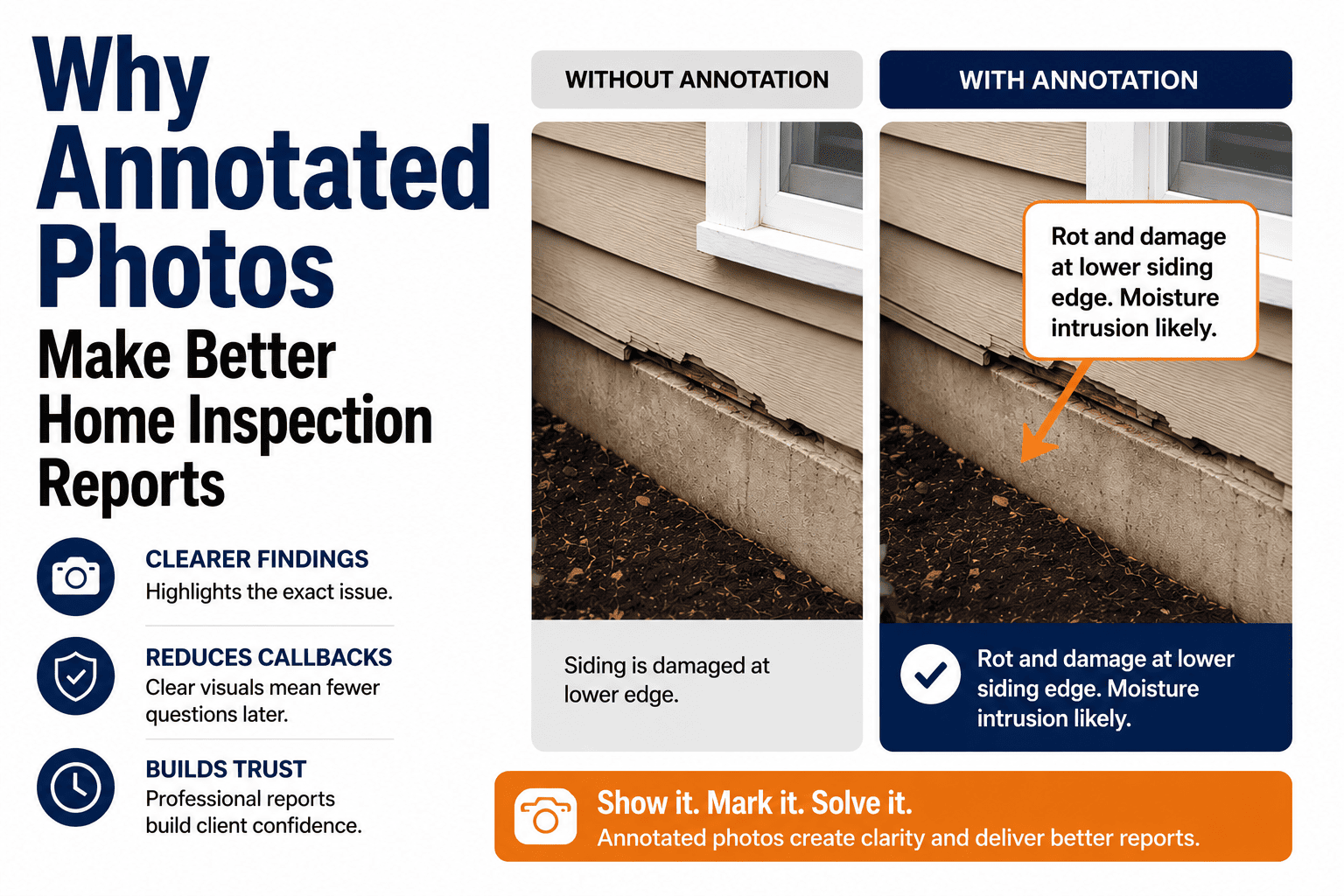
A photo without context is a guessing game. The client stares at an image of an attic and tries to figure out which shadow you are talking about. An annotated photo — with an arrow pointing to the stain, a circle around the corrosion, and a one-line caption explaining what it means — tells the story instantly. The finding goes from "see attached photo" to "this is the problem, this is where it is, and this is why it matters" in a single image. Annotated photos reduce callbacks, eliminate confusion, and make your report the kind of document agents want to forward because it communicates clearly without a phone call to explain it. This guide covers what to annotate, how to mark up photos on-site without slowing down, and the annotation habits that separate a professional report from a photo dump. If you want to see annotated photo documentation in a finished report, book a demo.
Report Quality — Photo Documentation
An Arrow and a Caption Beat a Paragraph of Text
Annotated photos eliminate guesswork, reduce callbacks, and make your report the document clients and agents actually trust. Learn how to mark up images on-site — fast.
Why Annotated Photos Change Everything
A typical inspection report contains 50 to 200 photos. Without annotations, every one of them requires the reader to cross-reference written text to understand what the image is showing. Annotations embed the explanation directly into the photo — so the finding communicates instantly, even when the report is read by someone who was never at the property.
Fewer callbacks
When the client can see exactly what you found — circled, labeled, and captioned — they do not need to call you to ask what the photo means. Annotated reports cut follow-up questions significantly because the visual does the explaining.
Stronger client trust
A marked-up photo says "I saw this, I documented it carefully, and I want you to understand it." That level of attention builds confidence in your thoroughness — the client trusts the rest of the report because the photos show you took your time.
Report reads on its own
The report gets forwarded to agents, contractors, and attorneys who never met you. Annotated photos communicate clearly to any reader — no phone call to the inspector required. The document becomes self-explanatory.
Better legal protection
In a dispute, an annotated photo is stronger evidence than a plain image with a separate paragraph of text. The annotation is embedded — it cannot be separated from the photo, and it shows exactly what you identified and when.
The Five Annotation Tools That Matter
You do not need a design degree. Five basic tools cover every annotation scenario you will encounter in a home inspection. Learn these five and you can mark up any finding in under 10 seconds.
Arrow
Points directly at the defect. Use it when the finding is a specific spot — a crack, a stain, a missing fastener, a gap in flashing. The arrow tells the reader "look here" without ambiguity.
Circle
Frames an area of concern. Use it when the finding covers a region rather than a single point — water staining on a ceiling, corrosion on a pipe section, discoloration across a surface.
Rectangle
Outlines a section of the photo for emphasis — useful for highlighting a panel, a window, or a fixture that needs attention. Pairs well with a caption that explains what is wrong inside the box.
Freehand
Draw directly on the image to trace a crack line, outline an irregular stain, or mark the path of water intrusion. Freehand is the fallback when shapes do not fit the finding.
Text caption
A short label placed on or near the photo that names the finding. "Corroded supply line," "Missing kick-out flashing," "Active moisture staining." The caption turns a circled area into a documented defect.
Annotate on-site in seconds. HomeInspecto includes arrows, circles, rectangles, freehand drawing, and text captions — all inside the app, all embedded directly into the report photo.
What to Annotate — and What to Leave Clean
Not every photo needs markup. Over-annotating is just as bad as under-annotating — it clutters the image and buries the finding in visual noise. Here is the rule: annotate when the defect is not obvious, and leave the photo clean when it speaks for itself.
Annotate these
Small or subtle defects that a reader might miss
Findings in complex or busy backgrounds (attics, mechanical rooms)
Items where the location within the photo matters
Conditions that need a label to be understood (pipe material, wire type)
Multiple findings in a single image
Leave these clean
Room overviews and context shots
Obvious, full-frame defects (large hole in a wall)
Data plate photos (the text is the content)
"In good condition" baseline photos
On-Site Annotation Habits That Save Time
Annotating on-site — not at a desk later — is the key to making markup fast instead of tedious. These habits keep the process under 10 seconds per photo without sacrificing clarity.
Annotate immediately after taking the photo
Mark up the image while you are standing in front of the defect. You know exactly what you are pointing at. Do it later and you are guessing from memory — which is slower and less accurate.
Use one annotation per finding
One arrow and one caption per defect. If a photo has multiple findings, use one annotation for each — but keep the total count low. An image with eight arrows and five circles is unreadable.
Keep captions under eight words
"Corroded supply line at water heater." "Missing kick-out flashing." "Active moisture staining." The caption names the finding — the written comment in the report explains it. Do not put a paragraph on the photo.
Use consistent colors
Pick one annotation color — red or white typically contrast well against most backgrounds — and use it on every photo. Switching colors between images creates visual inconsistency that makes the report feel assembled rather than designed.
Pair with a close-up
Take a wide shot showing location context and a close-up showing the defect detail. Annotate the close-up; leave the wide shot clean. The pair tells the complete story — where the finding is and what it looks like up close.
Let the Photos Do the Talking.
HomeInspecto gives you arrows, circles, freehand drawing, and text captions — all inside the app, all on-site, all embedded directly into the report. Every annotation travels with the photo forever.
Frequently Asked Questions
Do annotated photos really reduce callbacks?
Yes. The most common callback after an inspection is a client asking what a photo is showing. When the photo has an arrow pointing at the defect and a caption naming it, the question is answered before it is asked. Inspectors who annotate consistently report significantly fewer follow-up calls — because the report communicates clearly on its own without a phone conversation to supplement it.
Does annotating photos slow me down on-site?
Not if you do it in the moment. Adding an arrow and a four-word caption takes five to ten seconds when you are standing in front of the defect. Doing it at a desk later takes longer because you are trying to remember what the photo shows. The net effect is a faster total workflow because on-site annotation replaces the longer written descriptions you would otherwise need to type into the report.
Should I annotate every photo in the report?
No. Annotate photos where the defect is subtle, hard to spot, or needs a label to be understood. Leave room overviews, data plate photos, and obvious full-frame defects clean. Over-annotating clutters the report and dilutes the impact of the markups you do use. The rule is: if the reader can understand the photo without markup, leave it alone.
What annotation tools should my inspection software include?
At minimum: arrows, circles, rectangles, freehand drawing, and text captions. Color selection and adjustable line thickness are useful additions. The tools should work on-site within the app — not require exporting the photo to a separate editing tool. Annotations should embed permanently into the report image so they appear in both the digital report and any PDF export.
Do annotations hold up as evidence in disputes?
Annotated photos are strong evidence because the markup is embedded in the image — it cannot be separated or reinterpreted. The annotation shows exactly what the inspector identified, where they identified it, and how they described it at the time of the inspection. This is more defensible than a separate paragraph of text that references an unmarked photo.
Does HomeInspecto support photo annotation?
Yes. HomeInspecto includes arrows, circles, rectangles, freehand drawing, and text captions — all available in the mobile app during the inspection. Annotations are embedded directly into the report photo and appear in both the digital report and the PDF export. Book a demo to see annotated photos in a finished report, or start a free trial and try annotation on your next inspection.
A Marked-Up Photo Is Worth More Than a Paragraph.
HomeInspecto gives you on-site annotation tools — arrows, circles, captions, and freehand drawing — all embedded directly into the report. Every photo tells the story on its own. Book a demo or start your free trial. No credit card required.